Zomalex | Data and AI Training
Power BI Courses - Joining Instructions
Here is what you need to know and do before the course. There are two approaches. The preferred approach is to install a recent version of Power BI Desktop on your PC. The alternative approach is to use Power BI online. This is not guaranteed to work, and is not recommended, but it is an option if you cannot install Power BI Desktop on your PC. The instructions for both approaches are given below.
Preferred approach: Install a recent version of Power BI Desktop on your PC
A new version of Power BI Desktop is released every month. You must have a recent version of Power BI Desktop within a few months of the date of the course installed on your PC. For example, for a course in 2026, a version on or later than January 2026 is required. You can check the version by opening Power BI Desktop, and clicking Help on the menu then About on the ribbon. A dialog box appears showing the version (month and year) similar to the snapshot below
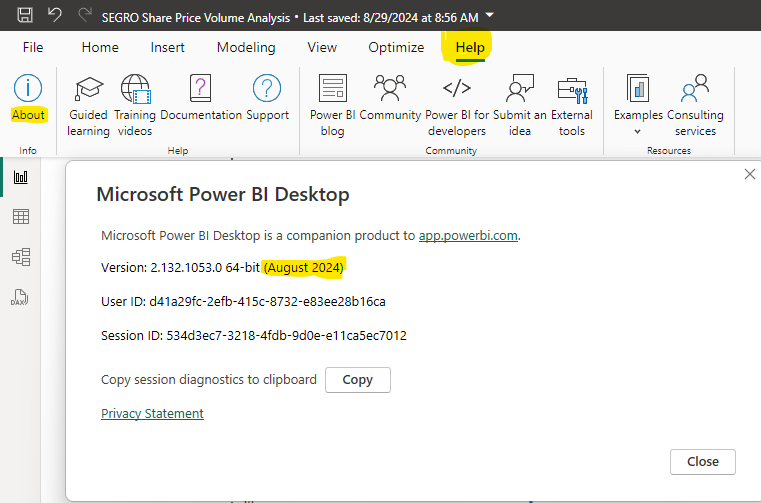
If you do not have Power BI Desktop, or you have an old version, then you should be able to install/update it using your organisation’s Software Centre. If you have problems installing Power BI, it is best to talk to your IT team well in advance of the course date.
Quick check to confirm Power BI Desktop is installed properly
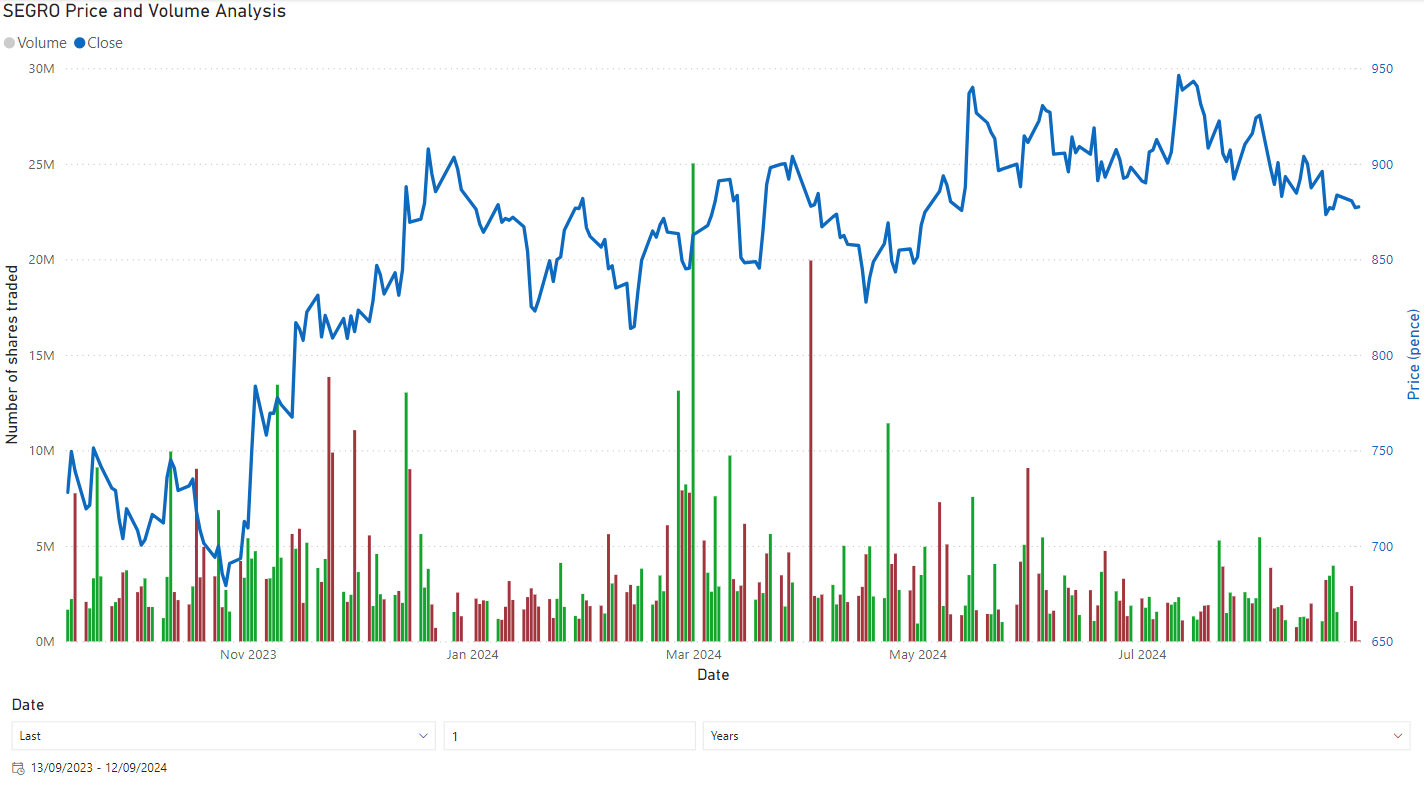
To check that you have installed Power BI Desktop, download this file created by Power BI Desktop to your PC. Once downloaded, double-click the downloaded file. If you have Power BI Desktop installed, this should launch the program and you will see a screen that shows the report such as the snapshot below
Alternative Approach: Use Power BI online
If you cannot install Power BI Desktop on your PC, an alternative is to use Power BI online. This is not guaranteed to work, and is not recommended. To check this works, before the course, go to Power BI online and sign in with your work email address. If you can’t sign in, talk to your IT team to see if they can enable Power BI online for you.
Once you have signed in, check the licence that you have by clicking the head and shoulders icon in the top right to see your profile - this will show the licence type (e.g Premium Per User, Pro, Free).
Click on the Workspaces icon, and select the “My Workspace” workspace.
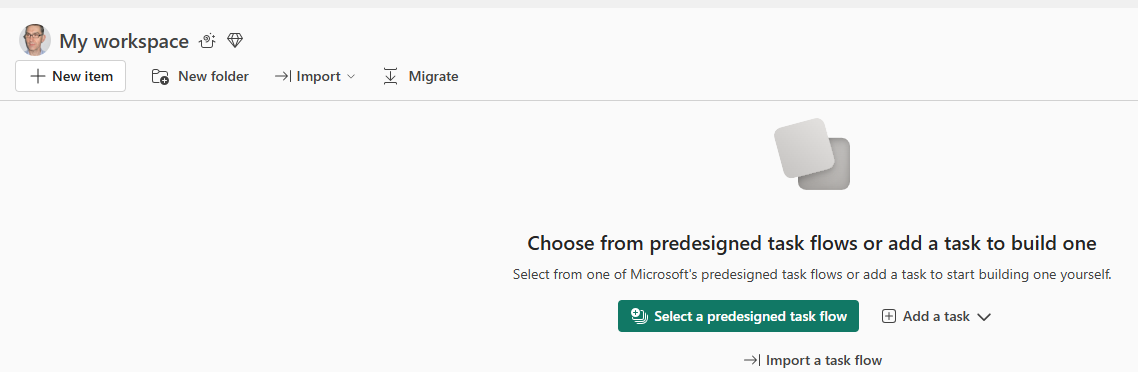
Then select the “New item” button. You should see a flyout screen like this.
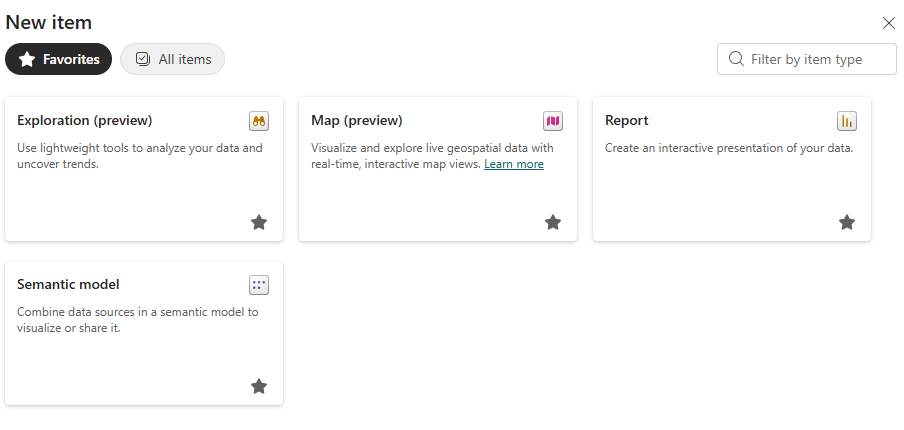
Click on the “Semantic model” option. If you can see this option, then it is likely that you will be able to follow most of the course using Power BI online.
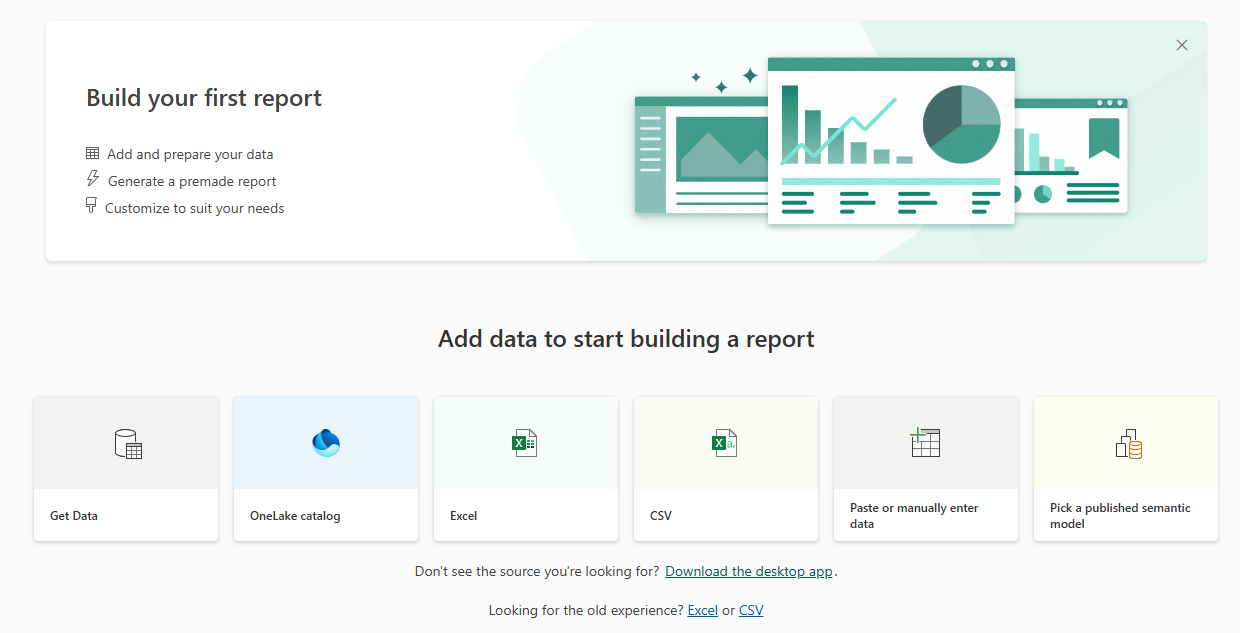
If you can see this screen, then it is likely that you will be able to follow most of the course using Power BI online.
Notes
Some attendees have reported that certain functionality, such as writing DAX queries in the DAX query view, does not work unless they switch on developer mode (Settings - Developer Settings - Turn Developer Mode On). If you have any problems during the course, try this.