Zomalex | Data and AI Training
Modern Data Modelling - Set up Power BI
Power BI Desktop (PBID) is a free application from Microsoft that we use to:
- connect to data,
- shape and clean the data,
- build a semantic model,
- build reports based on the semantic model,
- and publish these reports and semantic model to the Power BI Service so that report readers can view and interact with them
Download and install Power BI Desktop either from the official download page or the Microsoft Store.
If you are using a work laptop, you won’t be able to install Power BI Desktop directly or from the Microsoft Store but you should be able to install/update Power BI Desktop using your organisation’s Software Centre.
Launch Power BI Desktop. It will ask you to sign in. If you have a Power BI license connected to a work/school account, you can do this. If not, don’t worry. You do not need to sign in. Cancel the sign-in dialog.
Download an example Power BI file with a simple model
Download this file. Move it to the course folder. Then open it In Power BI Desktop. Switch to the model view. You should see something like this.
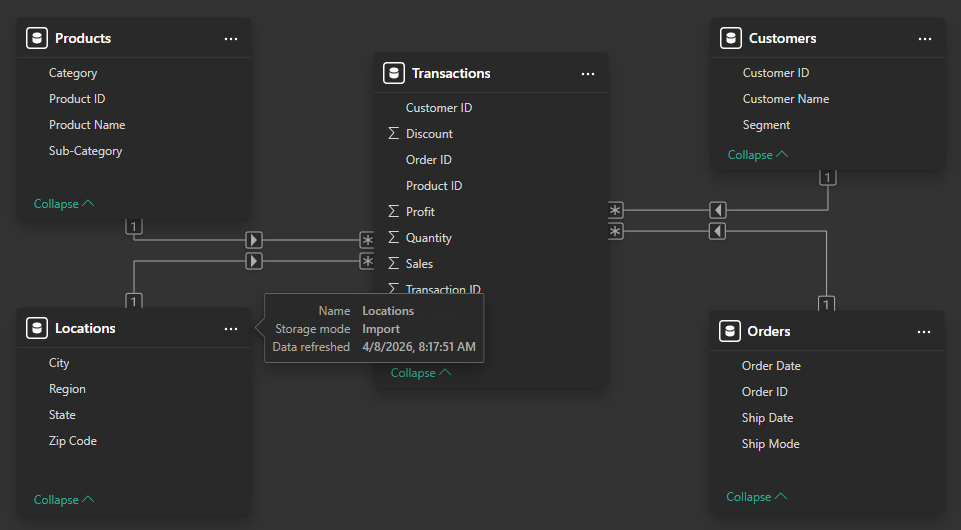
This is a small Power BI Desktop file (PBIX file) with a simple star schema model. It has a single fact table and a few dimension tables. We will use it to test that our MCP server once installed is working properly.
It is unfinished. The data model needs much improvement, it currently does not have any measures. It is a good starting point for our tutorials and lab exercises to use AI and the MCP server to improve a model.