Zomalex | Data and AI Training
Modern Data Modelling - Set up VSCode and MCP, Copilot Chat extensions
VSCode is a very popular lightweight editor for many languages. It can host extensions, for example, for Python and Microsoft SQL Server. We will install the Power BI Modeling MCP Server and GitHub Copilot Chat extensions.
Download and install VSCode
Download and install VSCode either from the official download page, or from the Microsoft Store.
Open VSCode. Select File then Open Folder and choose the course folder.
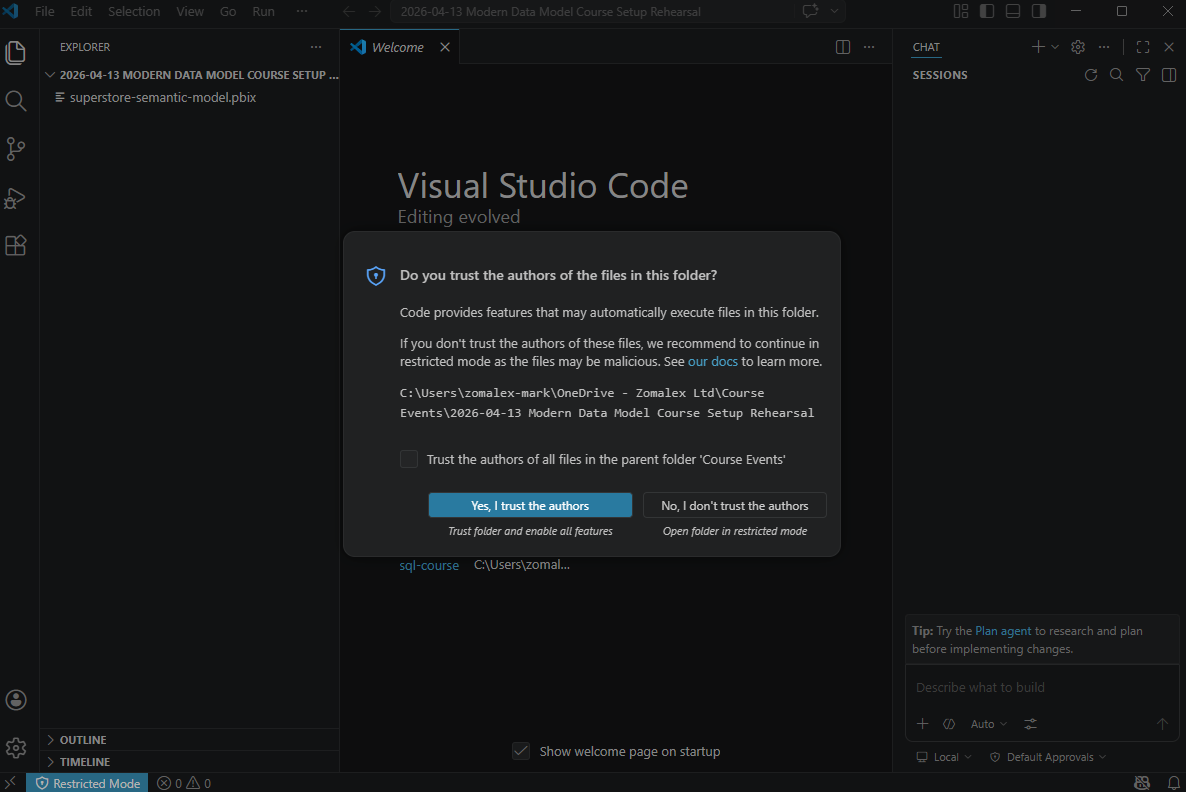
Select “Yes, I trust the authors” if asked.
Within VSCode, install the Power BI Modeling MCP Server and the GitHub Copilot Chat extension
The Power BI Modeling MCP server allows us to improve the model directly with the help of an AI assistant and giving instructions in natural language. In VSCode, go to the Extensions icon on the Activity Bar, search for “Power BI Modeling MCP Server”, and install the extension.
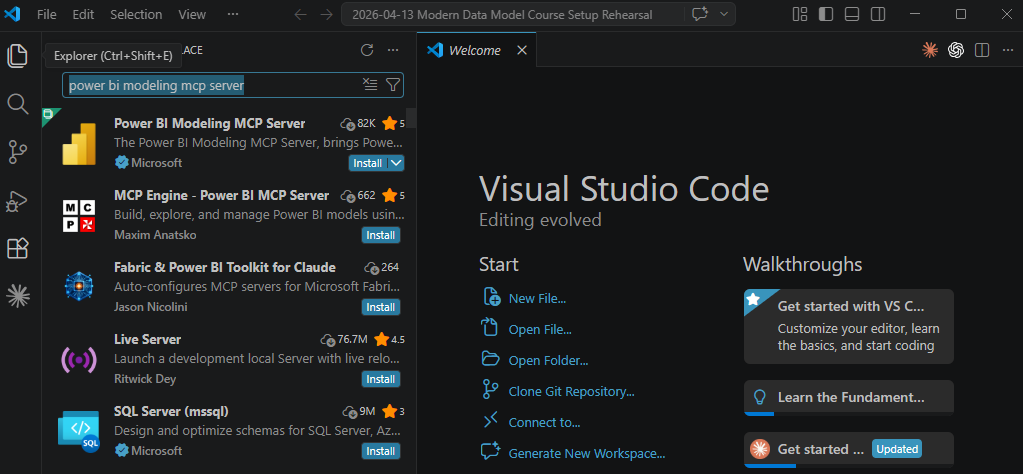
Then install the GitHub Copilot Chat extension in the same way.
Connect to the MCP Server with GitHub Copilot Chat
Open a GitHub Copilot Chat pane. There are a few ways to do this
- from the menu, select View then Chat
- use the keystrokes (Ctrl+Alt+I)
- open the Command Palette (Ctrl+Shift+P) or from the menu View then Command Palette, and select “GitHub Copilot: Chat”.
In the chat pane, type
Connect to the open Power BI model using the Power BI Modeling MCP server
If you see a request to “Allow in this session”, click on “Always Allow”.
You should see a response that it has connected to the model.
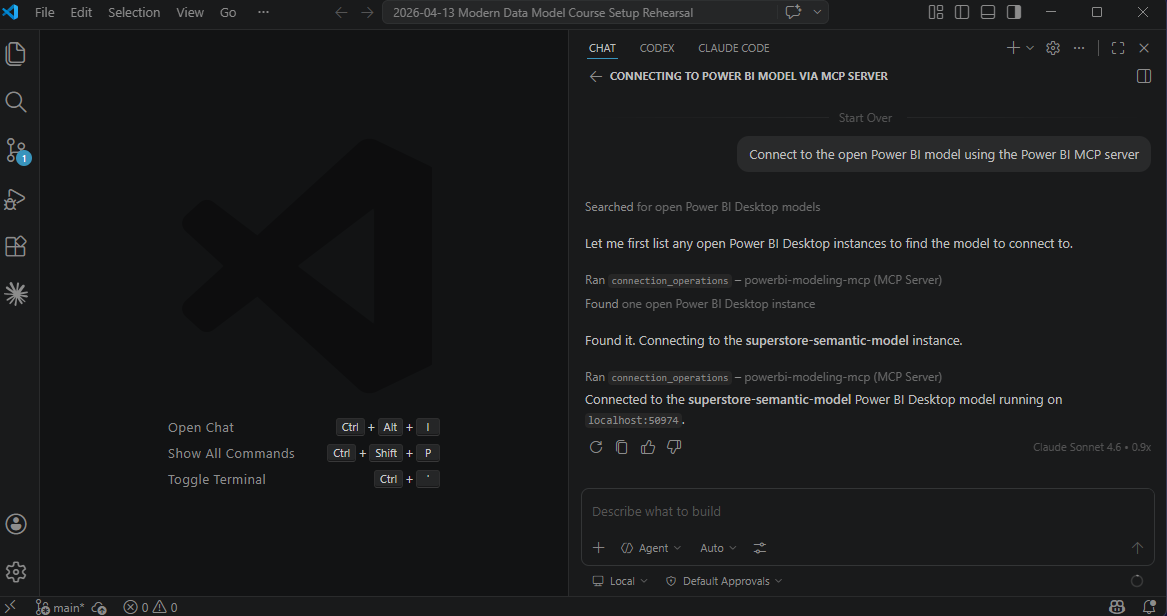
If you get an error, check that Power BI Desktop is running and that you have the PBIX file open.
Try this prompt.
List the tables in the model
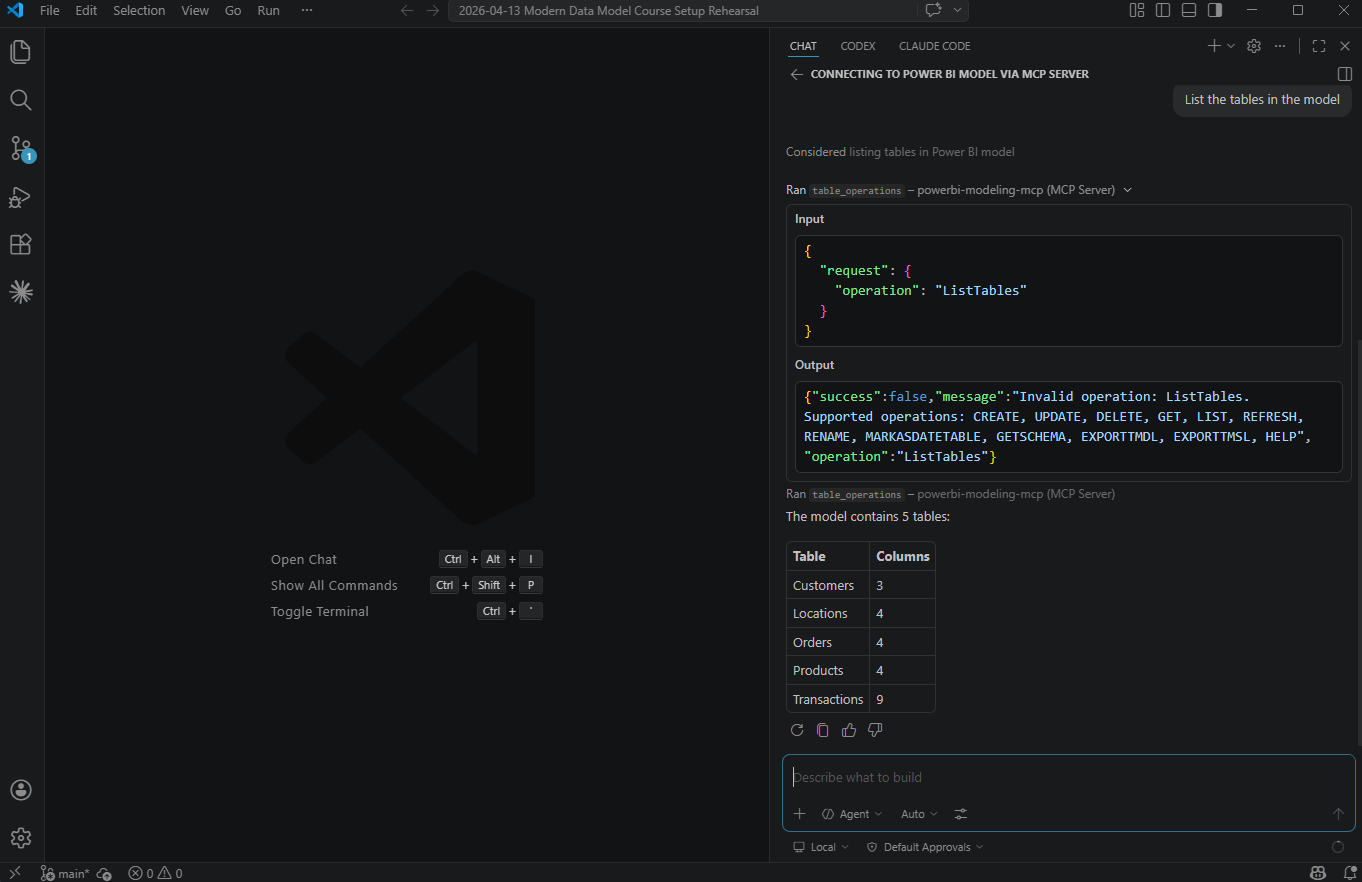
If you get a result listing the tables, you will be able to inspect and change the model using natural language instructions from the Copilot chat panel. Congratulations!
This prompt will give a sneak preview of the next session: what are the issues with this model and how the AI will improve our model.
Review the model. Does it meet best practices?
Optional & Advanced: Set up Git for the first time
This is advanced and provided only for completeness. Please ignore this section unless you are familiar with Git and sure you want this as a GitHub repo.
If you want to initialise the folder as a git repo, you may need to set our identity for commits. If so, enter each line below at the VSCode terminal. Change “Your Name” and “you@example.com” to your actual name and email.
git config --global user.name "Your Name"
git config --global user.email "you@example.com"
If we have created a git repo in the course folder and have put the Power BI Desktop (.pbix) in this folder, we also may want to ignore any changes to this file when committing
Create a .gitignore file, enter the following line
*.pbix
and save the file.