Zomalex | Data and AI Training
Joining Instructions for SQL Courses
Here are steps by step instructions. Note that the user interface may change and that what you see may be slightly different to these images below - use your common sense.
In a browser, go to the GitHub website. Sign in if you already have an account, or create a free GitHub account if not.
Enter this URL into the browser https://github.com/MarkWilcock/sql-student-template
Click on the green “Use this template” button then choose “Create a new repository”
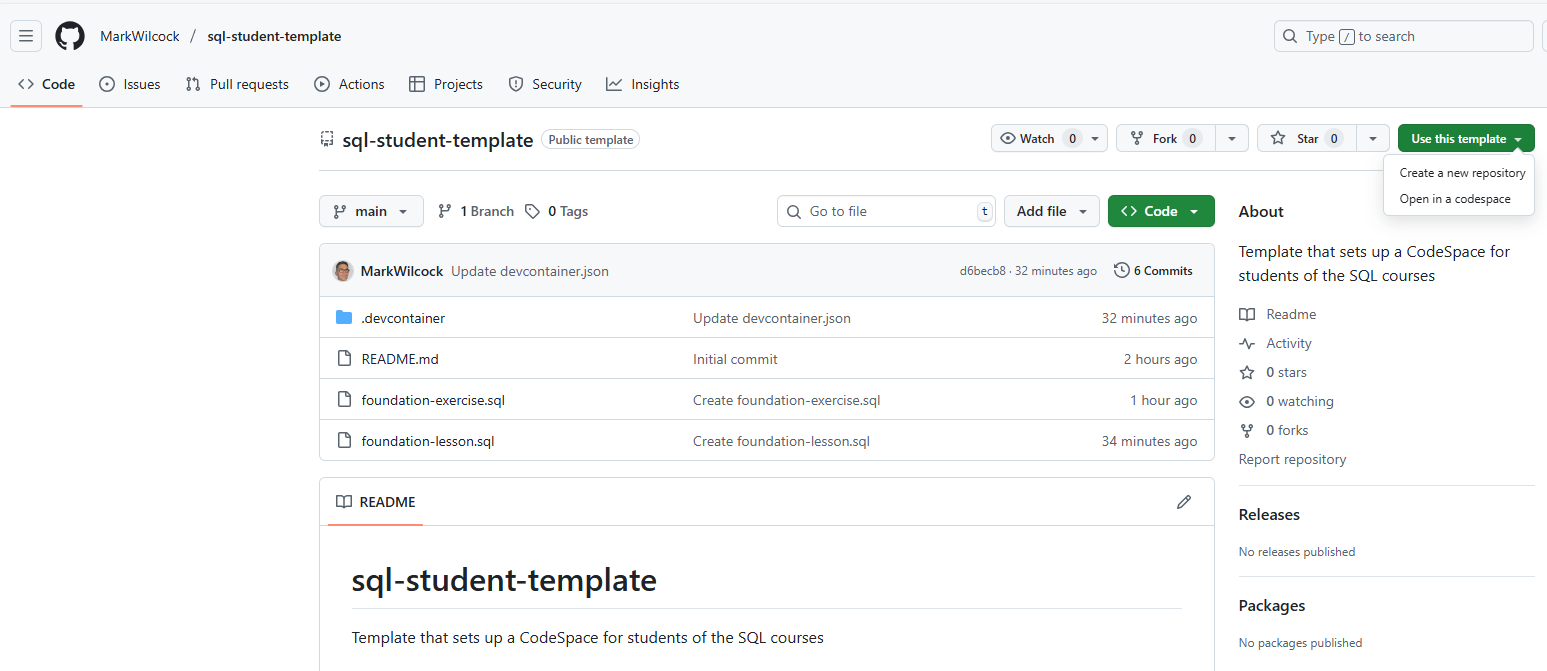
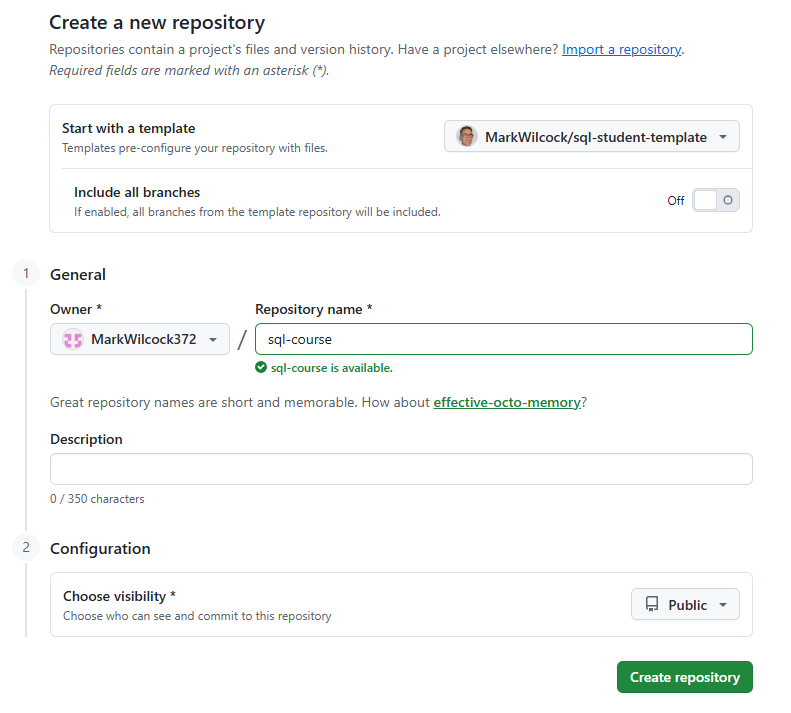
At the next screen give your repository a name such as “sql-course” then click on the “Create repository “ button.
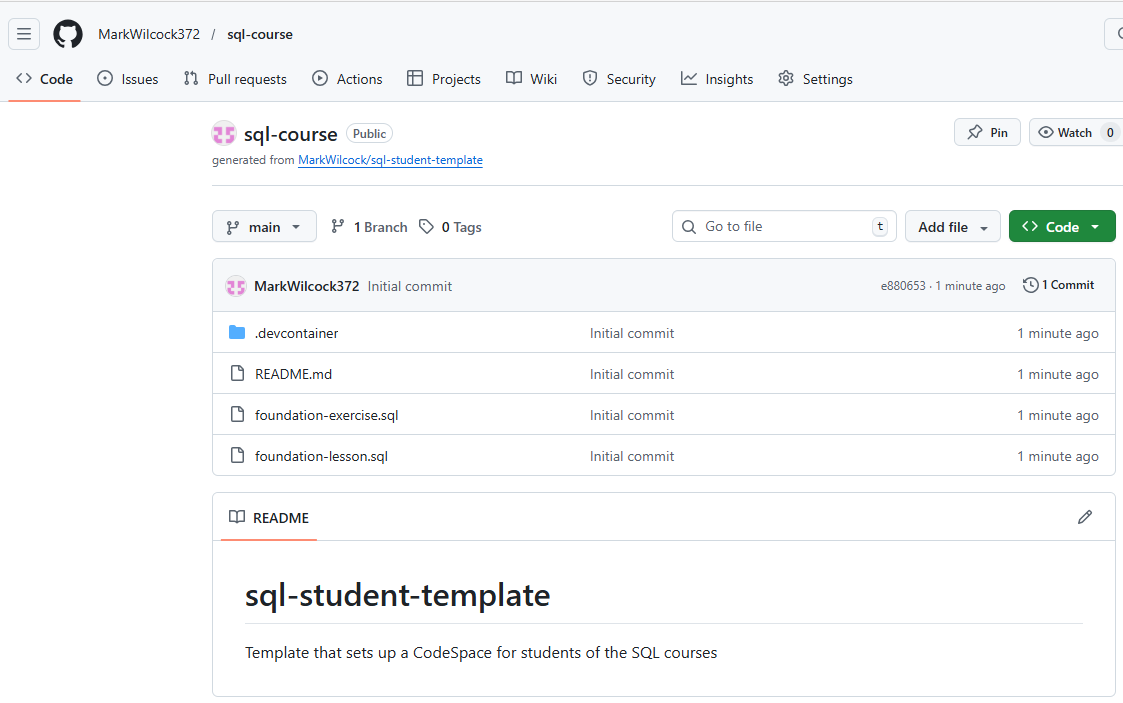
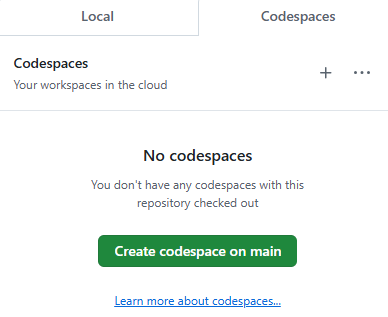
You will now see your new repository <your-github-username>/sql-course. Click on the green “Code” button, then on the “Codespaces” tab then on the green “Create codespace on main” button as in the following snapshots.
This will open a new tab in your browser with your CodeSpace. After a few minutes, you should see a web page that looks similar (but not identical) to this.
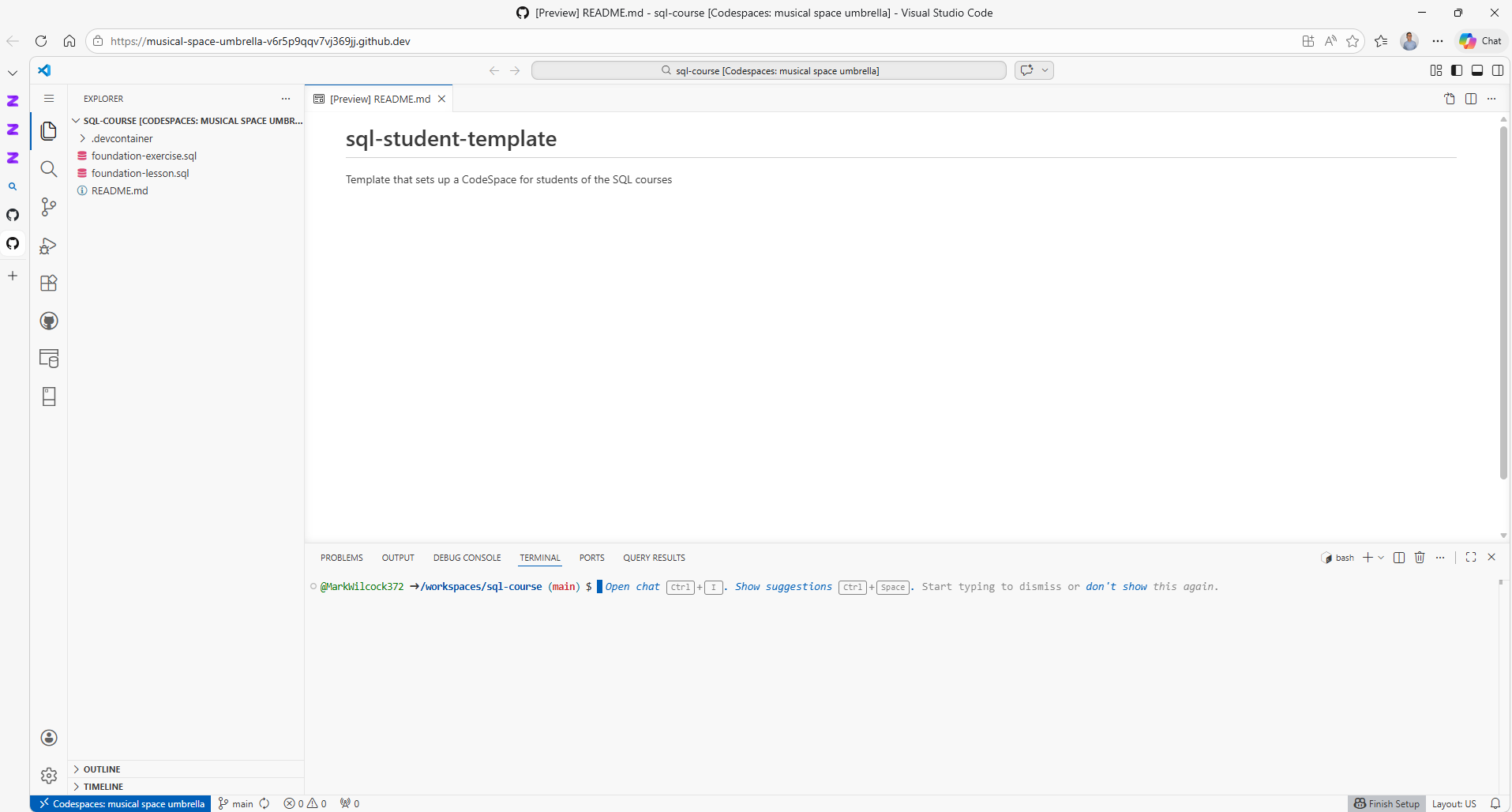
If you can see this page, you now have completed the joining instructions.
If you do not see this page, it is very likely that your organisations security settings are preventing the page from loading. Please raise a ticket with your IT help desk to resolve. As a last resort, you may want to consider doing the course from home on a personal computer. Note that if you have this problem on the day, it is unlikely that your IT team will fix it in time, so you will not be able to participate on the course.